MultiHub Reporting API: How to Pull Your Marketing Data Into Your Own Tools
If you've ever wanted your MultiHub data somewhere other than MultiHub (a spreadsheet, a BI dashboard, a data warehouse), that's now possible.
The new MultiHub Reporting API gives you direct, read-only access to your properties' marketing performance data, so you can bring it wherever your team already works.
Here's what it is, how to get started, and how to connect it to an AI assistant if you'd rather just ask questions instead of writing queries.
What the Reporting API Actually Does
The Reporting API pulls your marketing performance data out of MultiHub and into your own tools. It's read-only, meaning it can retrieve data but can't change anything in your MultiHub account, so there's no risk of accidentally overwriting a setting or a report.
At launch, you can pull:
- Google Ads performance data
- Website analytics data
More datasets are on the way, and you can see the full current list any time by querying the API directly. Once you have access, you can send that data to a:
- BI dashboard
- Spreadsheet your team already uses
- Data warehouse
- AI assistant you query in plain English
Getting Your API Key
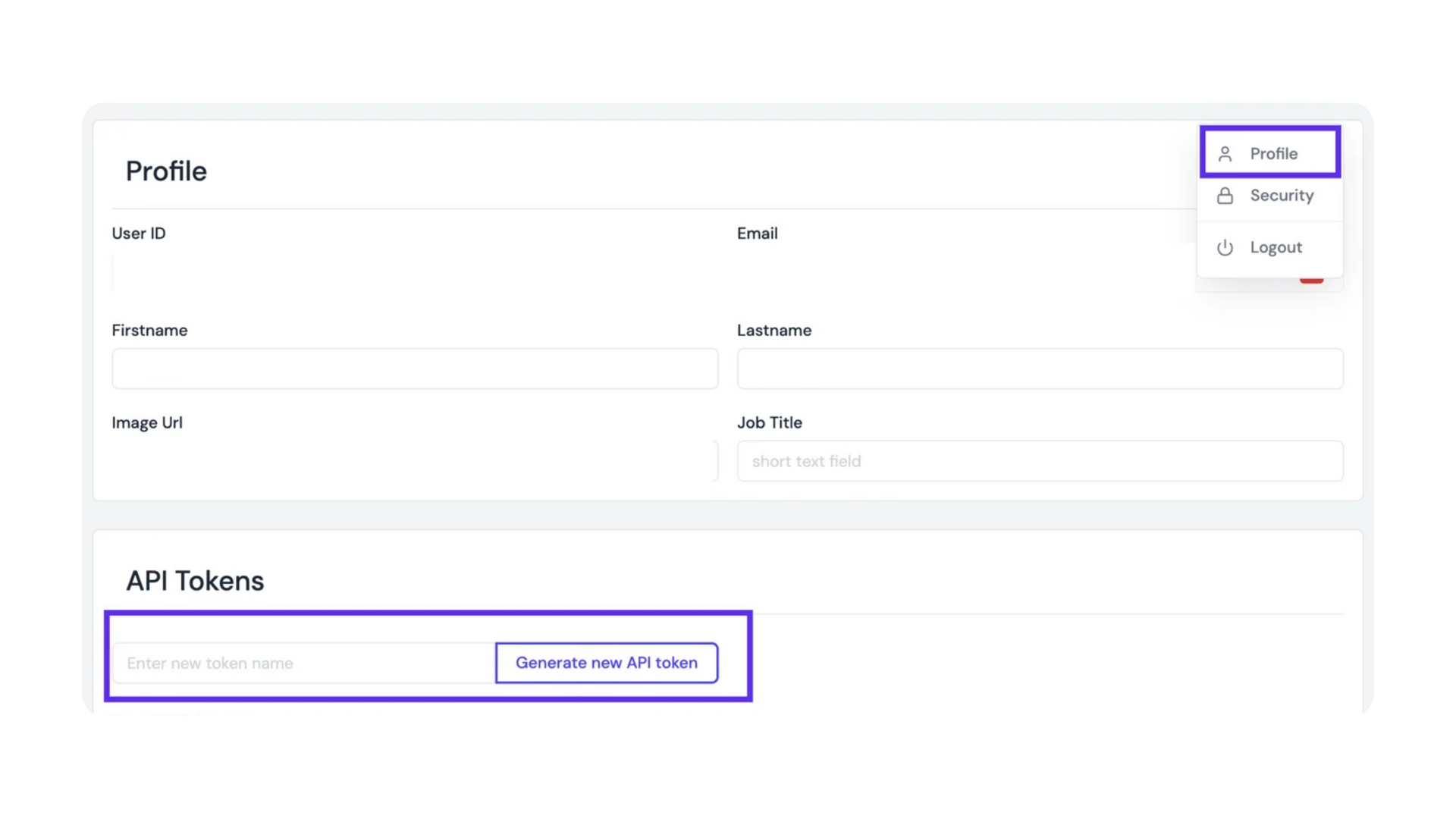
Every user generates their own key from their MultiHub profile. There's no separate developer portal or admin approval step.
A few things worth knowing:
- Keys are personal, not organizational. Each key is tied to the individual login that created it. If two people on your team need access, they each generate their own key.
- Rotating access is simple. If someone leaves the team, you just generate a new key rather than trying to share or revoke an old one.
- It covers more than Repli-built properties. You can connect data from any property in your MultiHub account – GA4, Google Search Console, Google Business Profile, Google Ads, and more – whether or not that property's website is built on Repli. That makes it possible to centralize reporting across your whole portfolio, not just the sites Repli manages.
Connecting an AI Assistant (No Code Required)
Instead of writing API queries, you can even connect an AI assistant, like Claude, and just ask it questions in plain English.
For example, "What was our Google Ads spend last month across all properties?" or "Which property had the most website traffic this quarter?"
The assistant reads your API key, runs the query behind the scenes, and hands you the answer.
Is this the right setup for you?
It's a good fit if:
- You want quick answers without building a dashboard
- Someone on your team already uses an assistant like Claude for other work
- You're fine with a short, one-time setup (saving a key, adding a small instructions file)
If your team already has a BI or spreadsheet workflow you like, you don't need the AI assistant route at all – connecting directly to the API works just as well.
Setup Guide
MultiHub currently supports several assistants including:
- Claude Code
- Claude Desktop
- Codex
- Gemini CLI
- Cursor
- VS Code (GitHub Copilot)
- Windsurf/Zed
The exact setup steps vary slightly by tool, so we've put together a dedicated setup guide with copy-paste instructions for each.
A Few Things to Keep in Mind
- It's read-only. You can pull data, but you can't use it to edit anything in MultiHub.
- Your API key stays local. When you're using an AI assistant, the key lives on your machine, and whatever the assistant pulls becomes part of that conversation – so use an assistant that fits your team's data policies.
- New datasets get added over time, so it's worth checking back on what's available.
Getting Started
If you're ready to try it, log into MultiHub, head to your profile, and generate your key.
Repli Apartment Marketing Blog
Subscribe to our Newsletter & Blogs
Blog Post Subscribe Form
Share Our Post!
Apartment Marketing Blog